Never used ChatGPT or Claude? Start here.
The no-jargon starter guide for parents who keep hearing about this stuff and haven’t touched it yet.
I worked on youth privacy at Meta. Now I make AI do our family admin.
So people assume I opened these apps knowing exactly what I was doing. I didn’t. The first time I typed something into one, I second-guessed every word and closed the tab. This guide is the thing I wish someone had handed me that day.
No tech background needed. You will not have to learn a single new word. By the end you’ll know what these apps actually are, how to talk to them, which one setting to turn off first, and how far down the rabbit hole you want to go (spoiler: not very far, and that’s fine). Let’s go slow and get it right.
First: what even is this? (90 seconds)
There are two big ones you keep hearing about:
- ChatGPT (made by a company called OpenAI)
- Claude (made by a company called Anthropic)
They are the same kind of thing: an app where you type a question or a request in plain English, and it types back like a very fast, very well-read assistant. Think of it as a smart friend who has read almost everything, is awake at 11pm, and never makes you feel dumb for asking.
They are not a search engine. You’re not looking for a list of links. You’re asking someone to do a thing for you: “read this school email and tell me what I actually have to do,” “write a nice-but-firm reply to this,” “make me a packing list for a 5-day trip with a 2-year-old.”
Which should you pick? For getting started, either is fine. You do not need both. I use Claude for most of the family stuff because of how it handles connecting to your email and calendar (more on that later), but if a friend already helped you set up ChatGPT, stay there. This guide covers both.

Before you type anything real: turn off one setting
This is the whole reason I can hand over the real school email instead of typing a fake name. It takes two minutes and it’s the single most important thing in this guide.
Somewhere in each app’s settings there’s a switch that lets the company use your conversations to “improve” or “train” the AI. When it’s on, the things you type can be used to make the system smarter for everyone. When it’s off, your conversation answers you and stops there.
Turn it off. On both apps it’s usually a single toggle, and it exists on the free plan too.
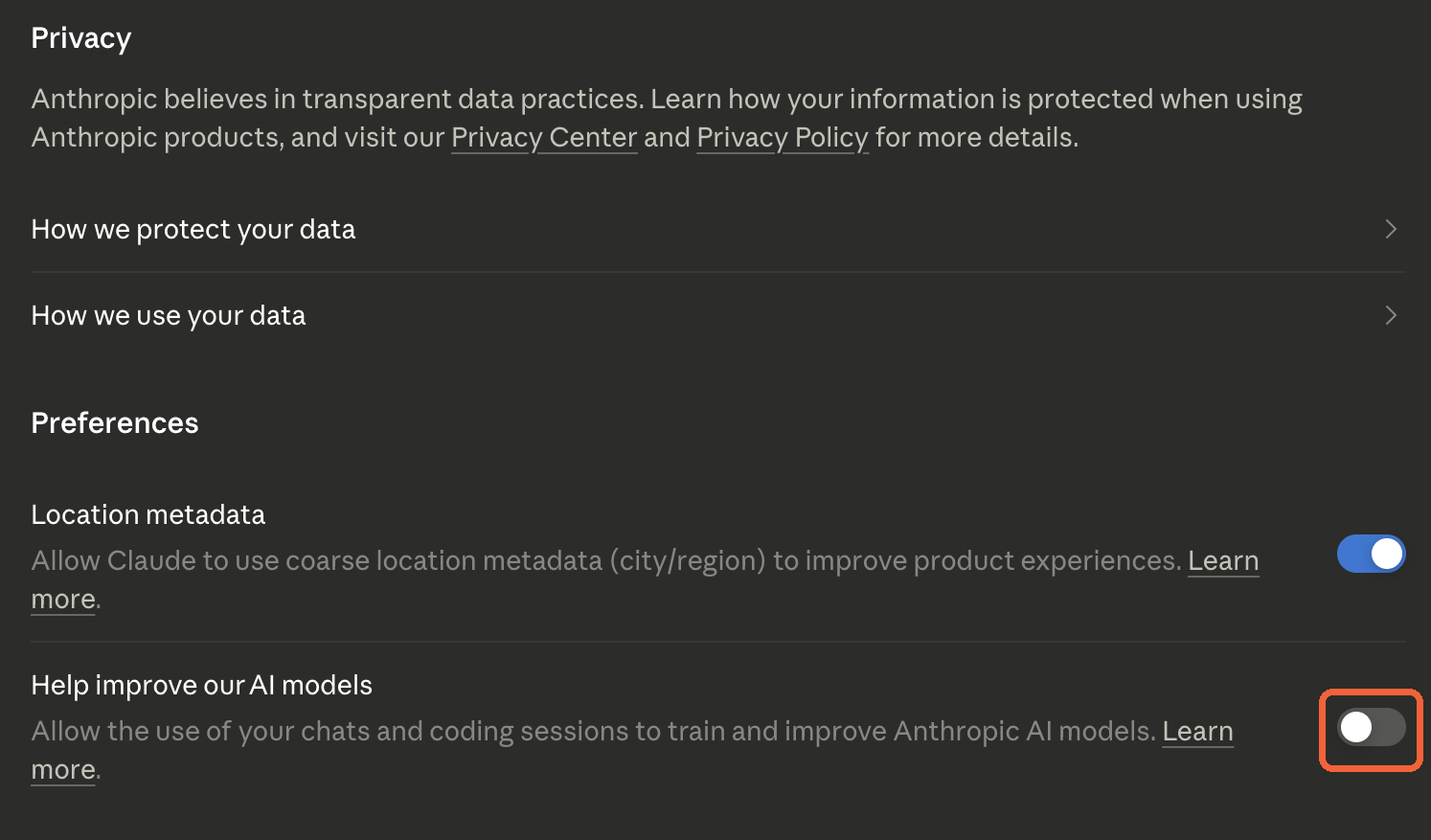
In Claude
Go to Settings → Privacy, scroll to Preferences, and turn off “Help improve our AI models.” It takes effect right away, no save button.
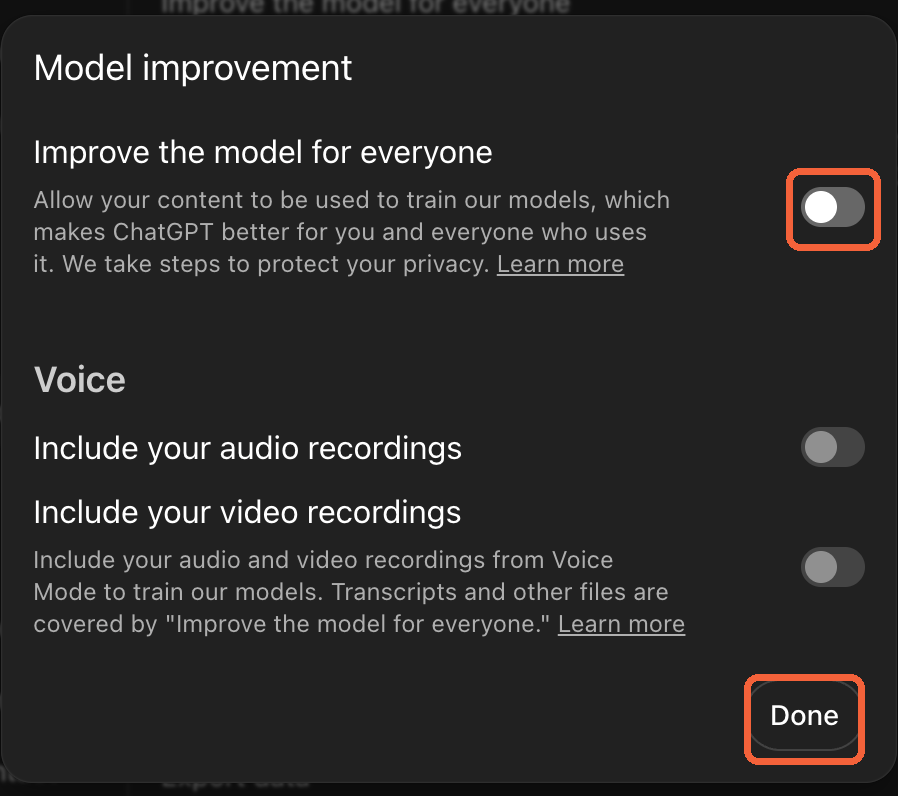
In ChatGPT
Go to Settings → Data Controls, open “Improve the model for everyone,” turn it off, and then hit Done to save it. (In ChatGPT this one doesn’t save until you press Done, so don’t skip that.)
Turning off training means your words aren’t teaching anyone’s system. Your chats still travel to the company’s servers to answer you (that’s how any of these apps work), but with training off, nothing you type is being reused. That’s a normal, reasonable bar for family admin. You did the two-minute setup so you can stop being careful and start being helped.
Both companies move these settings around sometimes. If your screen doesn’t match, the setting still exists. Look for anything that says “training,” “improve the model,” or “use my data,” and that’s the one you want off.
How to actually talk to it
Here’s the thing that trips up every single person on their first day: they think they have to write the perfect request. They sit there editing, deleting, trying to sound like they know the magic words. There are no magic words. Here’s the whole skill:
Just tell it what you want. It does not have to be perfect.
Type it the way you’d text a friend who’s helping you. Messy is fine. Half-finished is fine.
Watch how low the bar actually is:
my kid has a bday party sat and i have no gift. hes turning 7,
into dinosaurs and legos, budget like $25. ideas?
That’s it. Typos, no punctuation, ran-on. It’ll answer perfectly. You do not need to be formal or clever. You just have to say what you want.
Three tiny things make it even better (optional):
- Say who it’s for or what it’s for. “for a 7-year-old,” “for a work email,” “keep it short.”
- Say what you want back. “give me a list,” “write it as a text,” “one paragraph.”
- If the first answer isn’t right, just tell it. This is the real secret. You don’t start over. You reply like a conversation:
too long, cut it in half

make it warmer, less formal

actually she's allergic to nuts, redo the snack list
It remembers what you were just talking about and adjusts. Going back and forth like this is normal and expected. That’s how you get from an okay answer to exactly what you wanted, and it’s faster than getting it perfect on the first try.
A few things you can do beyond typing
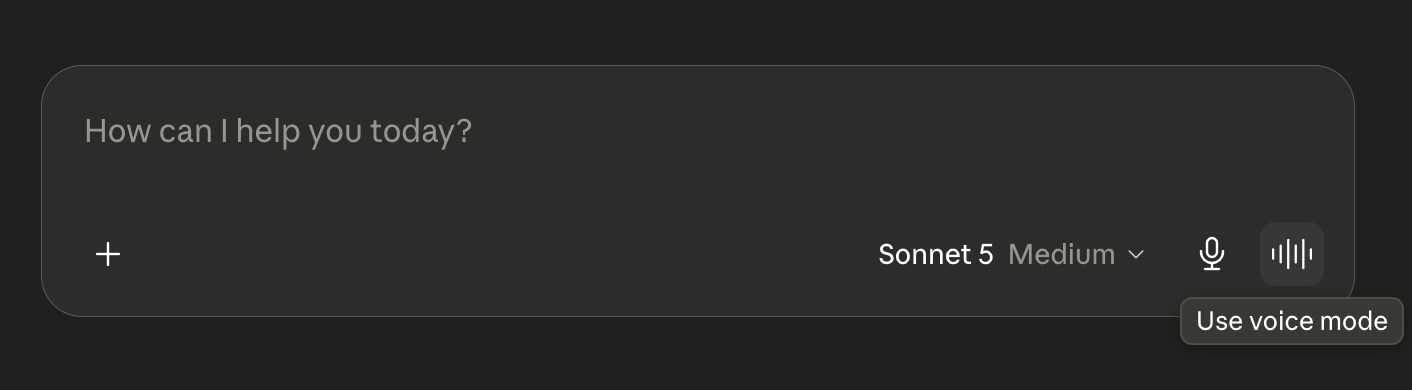
- Talk instead of type. Both apps have a microphone button. Tap it and just say what you want out loud. Great for carpool or folding laundry.
- Show it a photo or a file. Tap the “+” button next to where you type, then Add files or photos. Add a photo of the permission slip, the flyer, the crumpled supply list, or attach a PDF, then ask “what do I need to do with this?” This is where it starts feeling like magic.
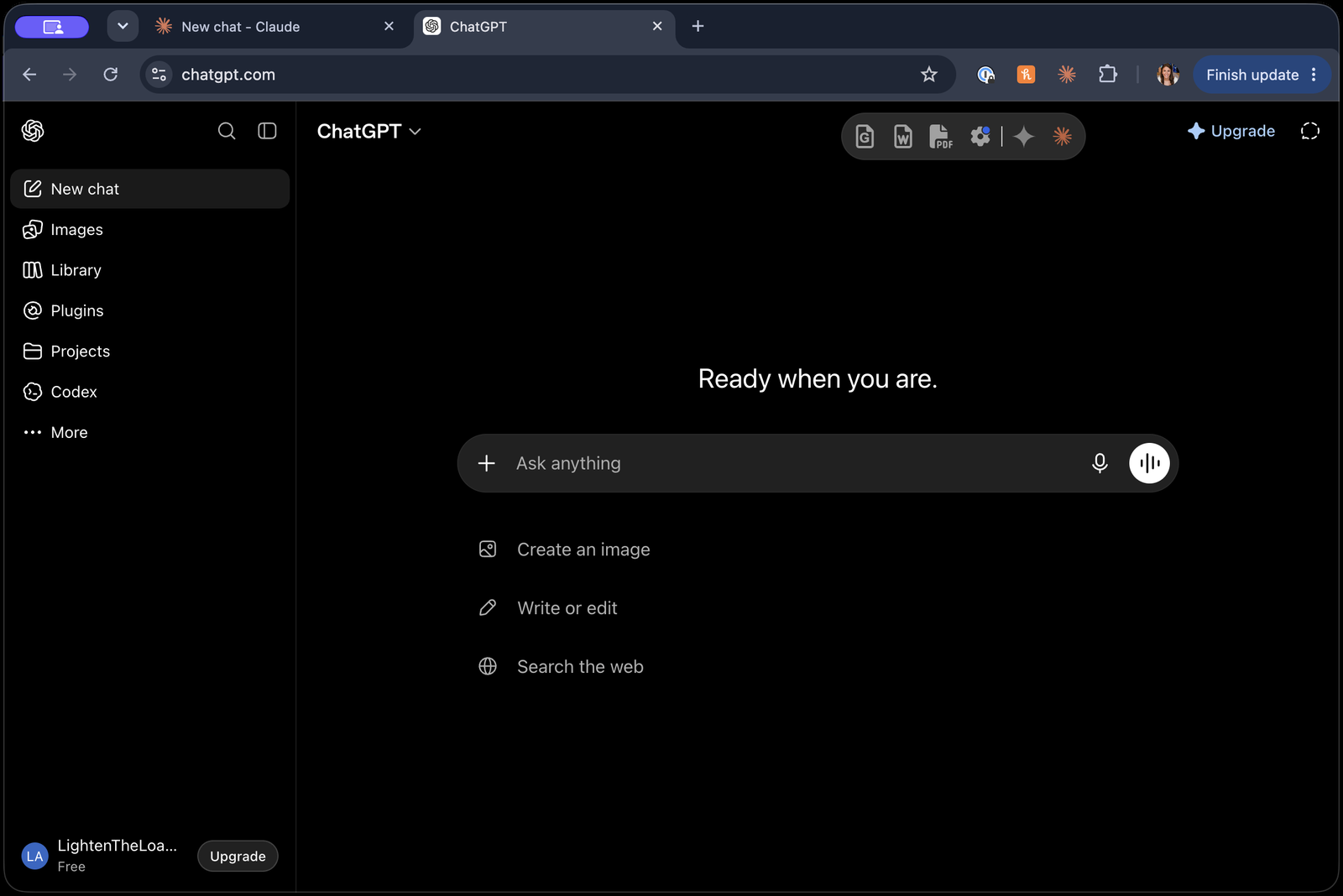
- New chat vs. keep going. Each conversation remembers itself top to bottom. Start a new chat when you switch topics; stay in the same chat while you’re still on one thing. (Your past chats are listed down the left side, like in the home screens above.)
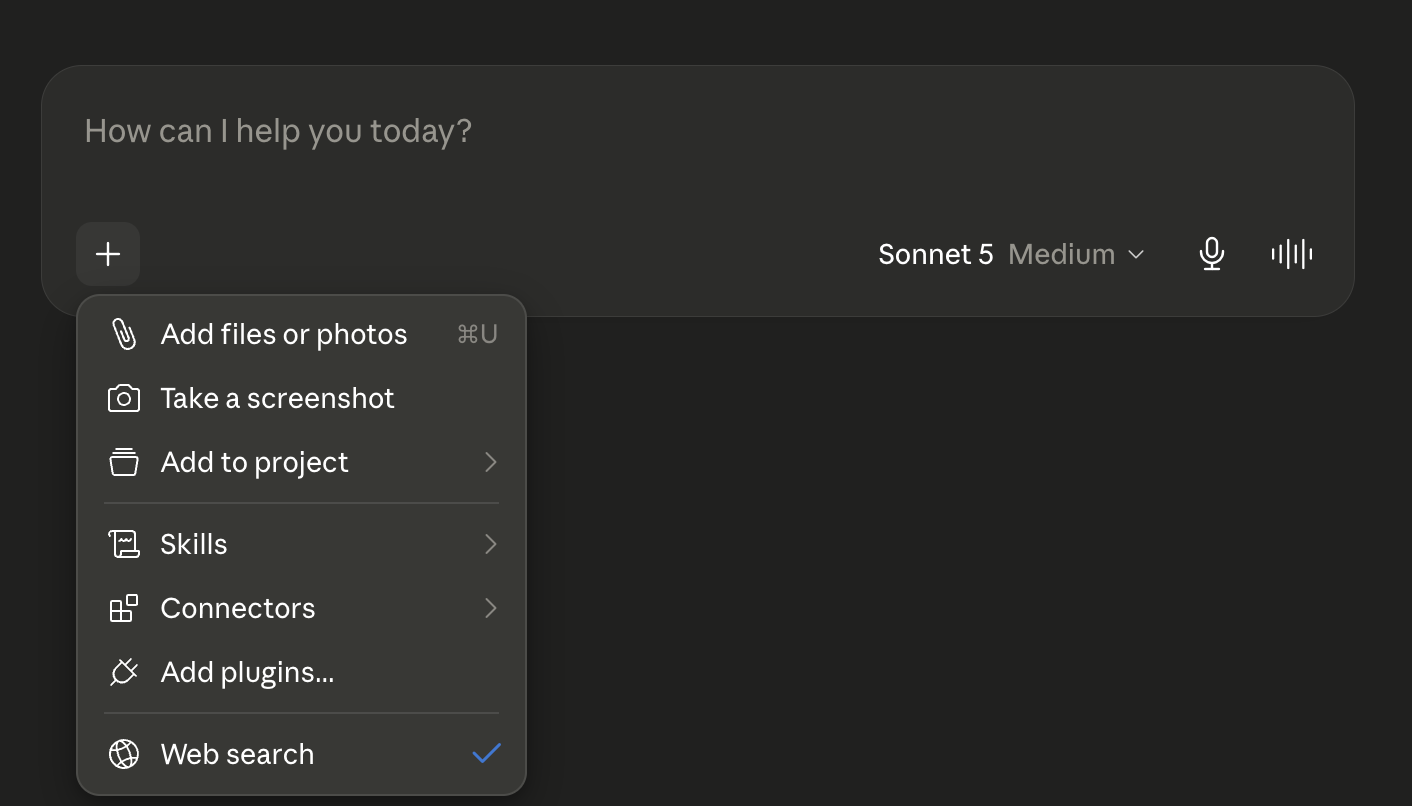
That’s genuinely the core of it. If you stopped reading here, you could do 80% of what I do. Everything below is “how much further do you want to take it.”
Cowork: flip one toggle to let it do the steps
Here’s the good news: this isn’t a separate app to learn. In the Claude desktop app, right under where you type, there’s a little Chat / Cowork toggle. That’s the whole thing. Leave it on Chat for normal back-and-forth. Flip it to Cowork when you want Claude to actually take the steps for you.
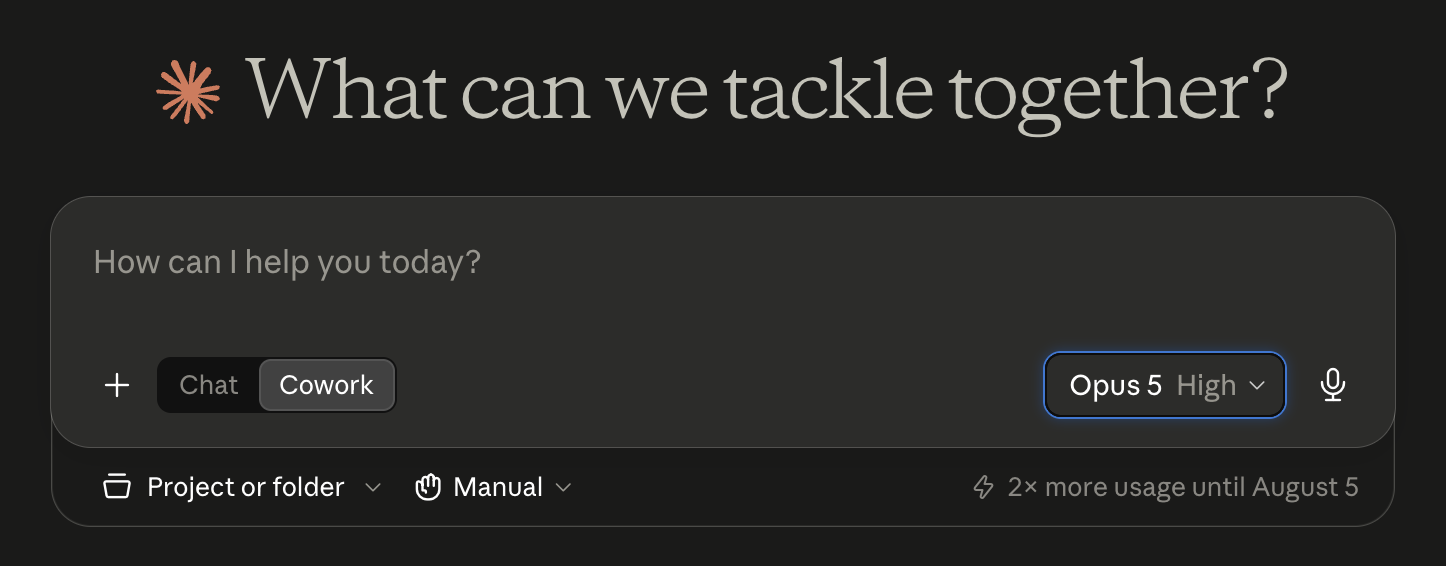
The plain-English difference:
- Chat hands you the answer. You still do the clicking, copying, saving.
- Cowork lets Claude take the steps for you, one at a time, while you watch. Instead of handing you a grocery list, it can build the actual document.
Think of Chat as asking advice, and Cowork as asking someone to sit at the keyboard and do it while you supervise. You’re in charge the whole time. It shows you what it’s doing and you can stop it at any point.
Would a parent actually use this? Sometimes. It’s lovely for a bigger one-time project: a full summer-camp comparison document, a family trip binder, organizing a messy folder of school PDFs into one clean summary. For quick daily stuff, plain Chat is faster. Start with Chat. Flip to Cowork when a task has a bunch of steps and you’d rather watch than do.
Because Cowork can take actions and open things for you, only point it at your own files and your own accounts, and read what it’s about to do before you say go. It’s a supervised helper, not an autopilot you walk away from.
Connectors: worth knowing exists, worth being careful with
This is the step that changes everything, so I want you to know it exists and know the one rule before you ever tap “allow.” (The exact click-by-click setup lives in the paid guide. Here’s the part everyone should understand no matter what.)
A connector lets the AI see one of your real accounts (your Gmail, your Google Calendar) so you can stop copy-pasting emails one at a time. Instead you just ask: “what school stuff is due this week?” and it looks for you. This is the difference between AI as a party trick and AI actually carrying your week.
Here’s what makes it safe, and it’s the whole point: a proper connector is a narrow, visible door. When you connect, a screen from the other company (Google’s own screen, not the AI’s) shows you exactly what you’re allowing, one line at a time, and you can shut it off in about thirty seconds from either side. You’re not handing over your whole account. You’re granting one specific, visible, revocable thing.
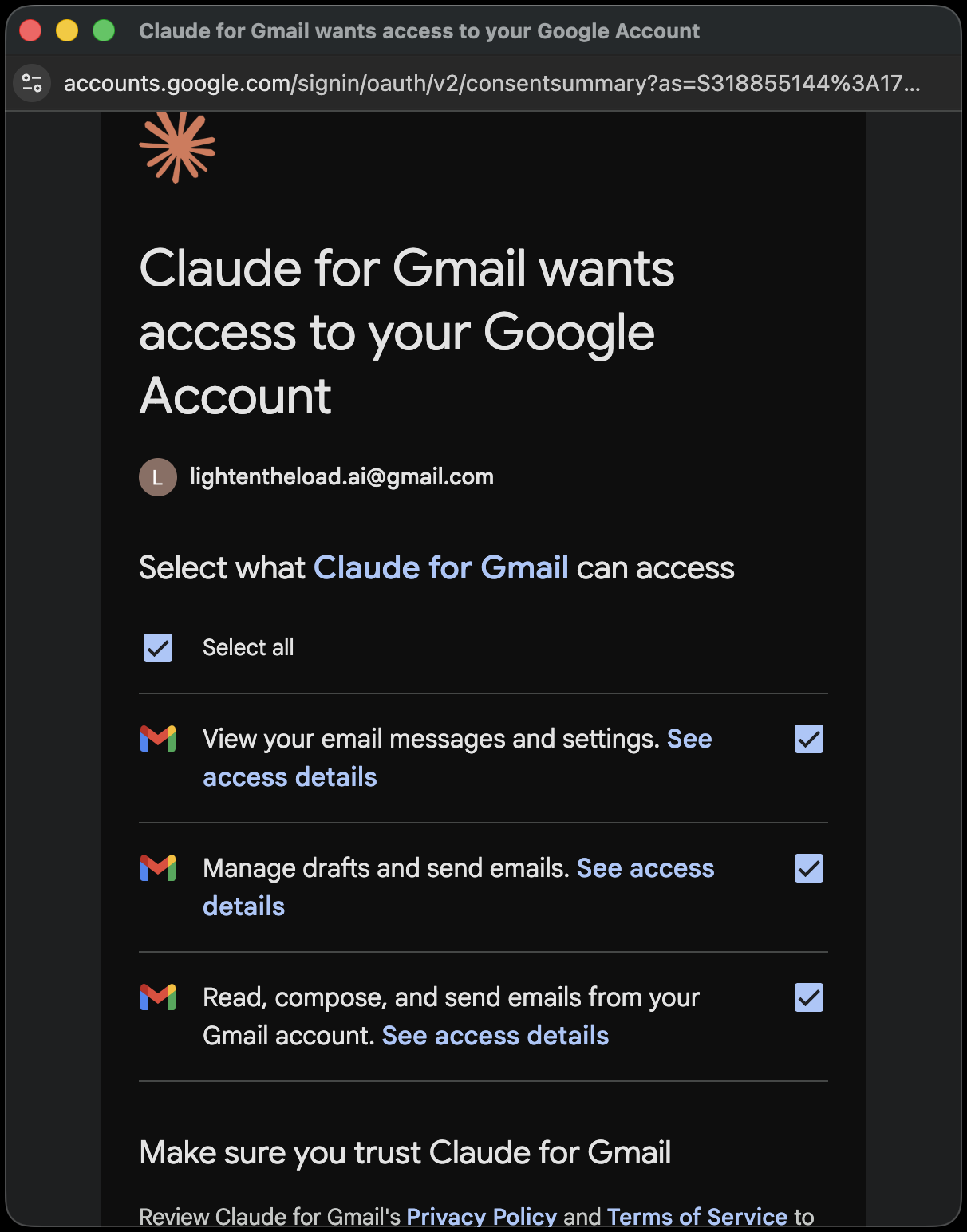
Know where the off switch is before you need it. In the app: the connector’s own Disconnect button. From Google’s side (the master switch for everything you’ve ever connected anywhere): myaccount.google.com/connections, find the app, choose Remove. Bookmark that page once. Knowing you can undo it in thirty seconds is exactly why you can connect it without a knot in your stomach.
A connector is a narrow door. An “AI browser assistant” is not. Some AI tools install into your web browser and log into your accounts for you, acting across everywhere you’re already signed in, all at once. That’s a much wider, harder-to-see kind of access. For family stuff, use the narrow door with the visible lock, and be very cautious with anything that wants your whole logged-in browser.
The filter for anything new you’re ever tempted to add: Does it show you, on the other company’s own screen, exactly what it’s asking for? Can you revoke it in under a minute from that company’s side? If yes to both, it’s probably fine. If you can’t answer either one, that’s your answer.
“Claude Code” and “Codex”: don’t worry about these yet
You may have heard these names and felt behind. Let me take the pressure off: think of these as the heavy-duty version of Cowork and ChatGPT, built for big, complicated projects with a lot of moving parts. They’re not part of your family-admin setup, and skipping them costs you nothing.
- Claude Code (from Anthropic) and Codex (from OpenAI) are that same AI, turned up for bigger, multi-step builds: things that take many steps in a row to put together, like an app, a website, or a larger tool.
- Who they’re for: anyone taking on a complex, many-step project and rolling up their sleeves to build it. It’s not only professional coders, but it is a level beyond “help me with the family calendar.” If you’re not building something like that right now, you don’t need them.
- Could a parent ever want one? Only if you get curious about building a little something yourself down the road. It’s a real and fun rabbit hole, but it’s its own hobby, not a step in getting your family admin handled.
The same one rule applies. These tools can create and change files on your computer, so only ever point them at a folder you set up on purpose for that project, and read what they’re about to do before approving it. Same instinct as Cowork: supervised helper, not walk-away autopilot.
So if you were worried there was homework here: there isn’t. File these two under “good to know they exist, safe to ignore for now.”
The settings to turn off (all in one place)
Do the first one today. The rest are quick.
- Training / “improve the model” turned OFF in the app you use (the big one, do it first). In ChatGPT, remember to hit Done.
- You know where the “delete a chat” button is. You can delete any single conversation from your chat list. In Claude, deleting a chat also removes it from ever improving the AI.
- Keep your own copies. Save the real school PDF, itinerary, or form in your own folder. Let the AI read your copy. Don’t let the app’s memory be the only place the file lives.
- You know where the connector “Disconnect” button is (if you connected anything).
- Clean out the old stuff twice a year. Back-to-school and New Year’s. Clear old chats and stale details so the AI works off what’s true now. Closet-cleaning, not a red alert.
Social Security and other ID numbers, bank or card numbers, passwords, passport numbers, medical records, and legal documents. Plain reason: the AI doesn’t need any of these to help you, so there’s no upside to pasting them. Everything else in normal family life (schedules, school emails, lists, “how do I word this”) is fair game once training is off. You don’t need to type around your own kid’s name — that’s the whole point of doing the one setting.
The honest picture, and where to go next
None of this is about being scared of AI, and none of it is about typing a fake name and hoping. It’s a few small things done once, so that everything after can just be handed over.
If today you only do three things: turn off training, ask it one real question the messy way you’d text a friend, and know where the off switch is. That’s a genuine start, and you’re further along than most people who’ve been meaning to try for a year.
Ready for the click-by-click version?
This guide gets you started. The paid guide, Set It Up Safe, walks you through the exact taps in Claude and ChatGPT, connecting your real inbox and calendar screen by screen, and building the systems that quietly run your family week on their own.
Pre-launch deal: $27 for a limited time (it goes up after launch).
Grab it at $27 while it lastsLess to carry, not less parenting. · Kim